Steps to Resolve Windows Update Error 0x80070012

Key Notes
- Identify and understand the error code 0x80070012 before troubleshooting.
- Follow systematic steps to rectify update-related issues effectively.
- Reboot your device after each troubleshooting step to apply changes.
How to Solve Windows Update Error 0x80070012 For Seamless Updates
Windows updates play a crucial role in maintaining your operating system’s security and functionality. Occasionally, you might hit a roadblock when trying to install updates, especially with error code 0x80070012. This guide offers actionable solutions for Windows 11 and 10 users to overcome this frustrating issue.
Solutions to Fix Windows Update Error 0x80070012
Encountering the update error 0x80070012? Use the following methods to effectively resolve this issue:
- Step 1: Run the Windows Update Troubleshooter
- Step 2: Reset Update Services
- Step 3: Perform a Clean Boot
- Step 4: Execute SFC and DISM Scans
- Step 5: Manually Download and Install Updates
Step 1: Run the Windows Update Troubleshooter
Utilizing the built-in Windows Update Troubleshooter can help resolve multiple update issues. Here’s how to enable it:
- Press Windows key + I to open Settings.
- Select Update & Security and go to Troubleshoot.
- Click on Additional Troubleshooters.
- Under the Get up and running section, select Windows Update and click on Run the troubleshooter.
This tool will identify and potentially solve underlying issues after some time. Follow any prompted steps, and apply any fixes suggested. Finally, restart your computer.
Step 2: Reset Update Services
If some services pertinent to Windows Update are disabled, updates may fail. Here’s how to reset these services:
- Open Command Prompt as an administrator.
- Enter the following commands one at a time, pressing Enter after each:
net stop wuauserv net stop bits net stop cryptsvc Ren %systemroot%\SoftwareDistribution\DataStore *.bak Ren %systemroot%\SoftwareDistribution\Download *.bak Ren %systemroot%\system32\catroot2 *.bak net start wuauserv net start bits net start cryptsvc
- Once you execute these commands, restart your PC to apply changes.
Step 3: Perform a Clean Boot
Conflicting software can hinder the update process. Here’s how to boot your device in a clean state:
- Press Win + X and select Run.
- Type
msconfigand hit OK. - Navigate to the Services tab and check Hide all Microsoft services.
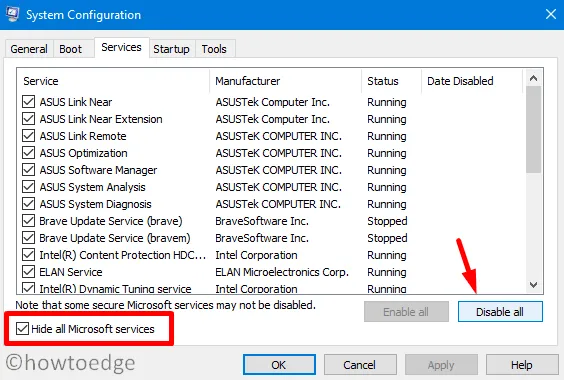
- Click Disable all, then go to the Startup tab.
- Open Task Manager and disable all startup items.
- Close all windows and restart your PC.
Log back into Windows and attempt to check for updates again.
Step 4: Execute SFC and DISM Scans
The System File Checker (SFC) and Deployment Imaging Service and Management Tool (DISM) can fix file integrity issues. Follow these steps:
- Open Windows PowerShell (Admin) or Windows Terminal.
- Type
sfc /scannowand press Enter.
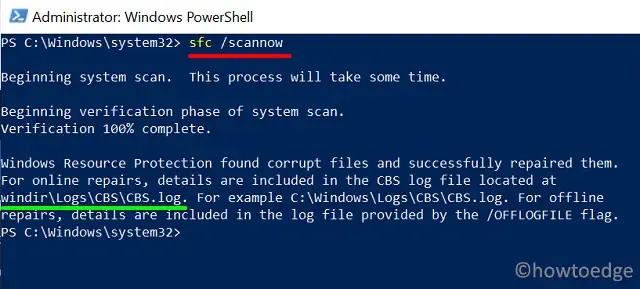
- Wait for the scan to complete, then run the command:
DISM.exe /Online /Cleanup-Image /Restorehealth
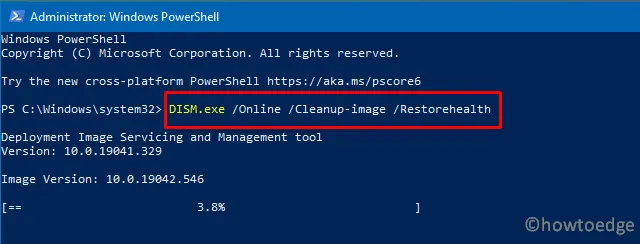
Both scans may take several minutes to complete. Reboot your computer once finished.
Step 5: Manually Download and Install Updates
If all else fails, consider manually acquiring the update:
Visit the Microsoft Update Catalog website, search for the pending updates, and download the appropriate package. Installation involves simply double-clicking the downloaded file.
Summary
The Windows Update Error 0x80070012 can disrupt the update process, making it vital for users to understand its causes and solutions. This guide provides step-by-step troubleshooting methods that are proven to help resolve the issue, ensuring a smooth Windows update experience.
Conclusion
In conclusion, while encountering update errors in Windows can be frustrating, systematically following the outlined steps can help rectify the 0x80070012 error. Remember, keeping your system updated is crucial for security and functionality.
FAQ (Frequently Asked Questions)
What causes Windows Update Error 0x80070012?
This error often occurs due to disabled services, conflicts with buggy software, corrupted updates, or hardware issues.
Is it advisable to skip Windows updates?
While technically possible, skipping updates can expose your system to vulnerabilities. It is safer to stay informed about known issues before proceeding.
How can I prevent Windows Update errors in the future?
Regular system maintenance, including checking for corrupted files and ensuring all services are enabled, can help prevent future update errors.