A Guide to Using the Environment Variable Editor in Microsoft PowerToys

Key Notes
- Manage both User and System environment variables seamlessly.
- User-friendly interface enhances productivity.
- Quick modifications and profile management options available.
Unlocking the Power of Environment Variable Editor in PowerToys
Managing environment variables can significantly affect the way applications and scripts operate in Windows. With the newly introduced Environment Variable Editor in PowerToys, users can easily manage both User and System variables, streamlining workflows for developers and power users alike. This guide empowers you to navigate this essential tool effectively.
How to Effectively Utilize the Environment Variable Editor in PowerToys?
Environment variables are crucial for defining user-specific and system-wide settings that applications depend on. Let’s explore how to view, add, edit, and remove these variables using the PowerToys Environment Variable Editor.
Step 1: Install PowerToys on Your Windows Device
To begin, you must first install PowerToys on your Windows machine. This is essential before managing environment variables.
Step 2: Create a New User Variable
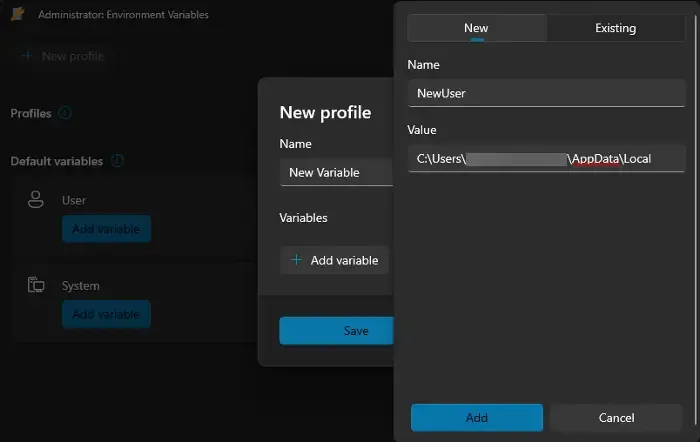
Launch the PowerToys Settings and click on Environment Variables in the sidebar. Toggle the switch to enable Environment Variables and click Launch Environment Variables. In the Administrator: Environment Variables window, select New Profile or directly hit Add variable under User to create a new variable.
In the pop-up, name your variable, enable it, and add the variable name with its corresponding value. Validate the addition by using the Run console via Win + R and typing the variable name within percentage signs.
Step 3: Setup a New System Variable
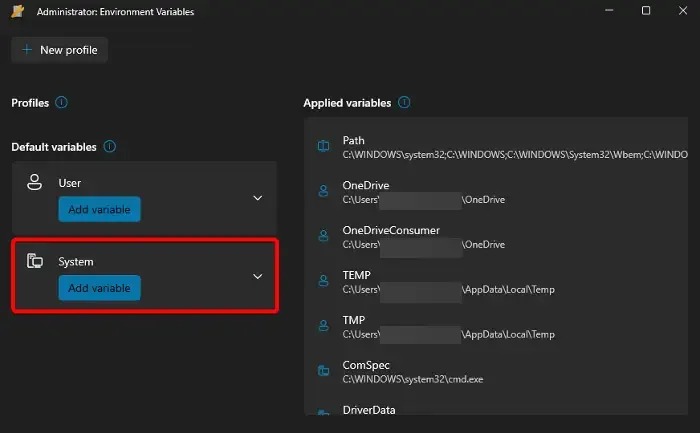
To create a system variable, follow the same initial steps: access PowerToys, toggle Enable Environment Variables, and click on Launch Environment Variables. Navigate to System and select Add variable. Fill in the variable’s Name and Value fields, and save the changes.
Step 4: Modify an Existing Environment Variable
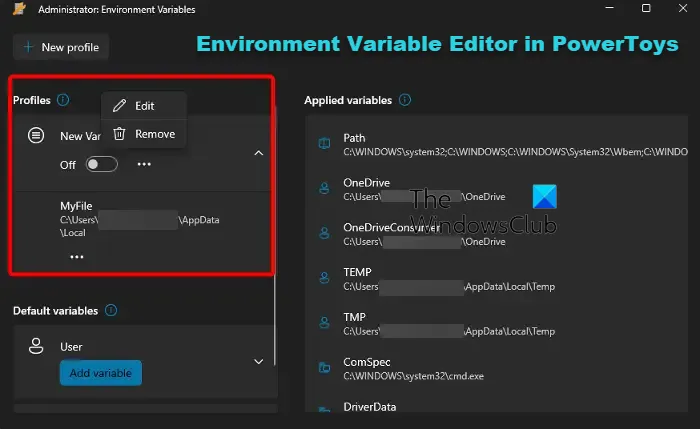
To edit an existing variable, launch PowerToys and navigate back to Environment Variables. Once enabled, click on the desired profile’s three-dot menu, then choose Edit to change or Remove to delete the variable as necessary.
Additional Tips
- Always verify your variables to ensure they’re pointing to the correct locations.
- Use descriptive names for your variables for easier management.
- Consider backing up existing environment variables before making significant changes.
Summary
This guide has detailed the step-by-step process of using the Environment Variable Editor within PowerToys. You can streamline your workflow by efficiently managing both User and System variables.
Conclusion
Mastering the Environment Variable Editor in PowerToys can significantly enhance your productivity and simplify the management of system settings. Embrace this powerful tool to optimize your Windows experience.
FAQ (Frequently Asked Questions)
How do I open the Environment Variable Editor?
To open the Environment Variables editor on Windows 10/11, press Win + R, type sysdm.cpl, and press Enter. Navigate to the Advanced tab and select Environment Variables.
How do I use User Environment Variables?
To manage User Environment Variables, access the System Properties via the Advanced tab and click on Environment Variables. From there, you can create, edit, or delete your desired variables.