Guide to Sharing Your Microsoft 365 Family Subscription with Others

Key Notes
- Easily share your Microsoft 365 Family subscription with family and friends.
- Understand the process to stop sharing when needed.
- Access to premium OneDrive storage and Office applications for all users.
Unlock the Full Potential of Your Microsoft 365 Family Subscription
Sharing your Microsoft 365 Family subscription can enhance productivity for you and your loved ones. This guide will walk you through the steps of sharing and stopping the sharing of the subscription benefits, ensuring everyone gets the most out of their subscription.
Share Your Microsoft 365 Subscription Benefits
To share a Microsoft 365 subscription with others, follow these detailed steps:
-
Sign in using your credentials if prompted.
-
Navigate to the Services & subscriptions tab.
-
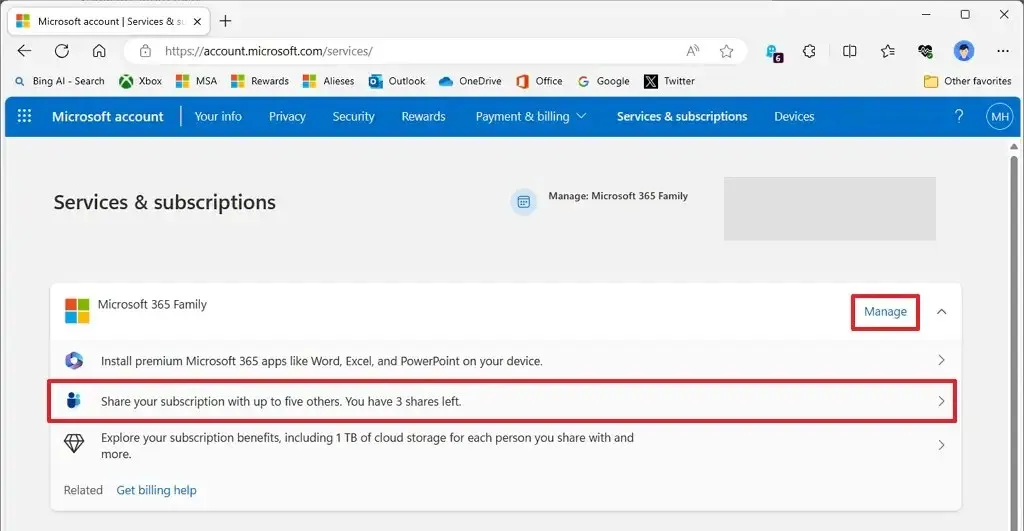
Select the Manage option associated with your “Microsoft 365 Family” subscription.
-
Click on “Share your subscription with up to five others”.
-
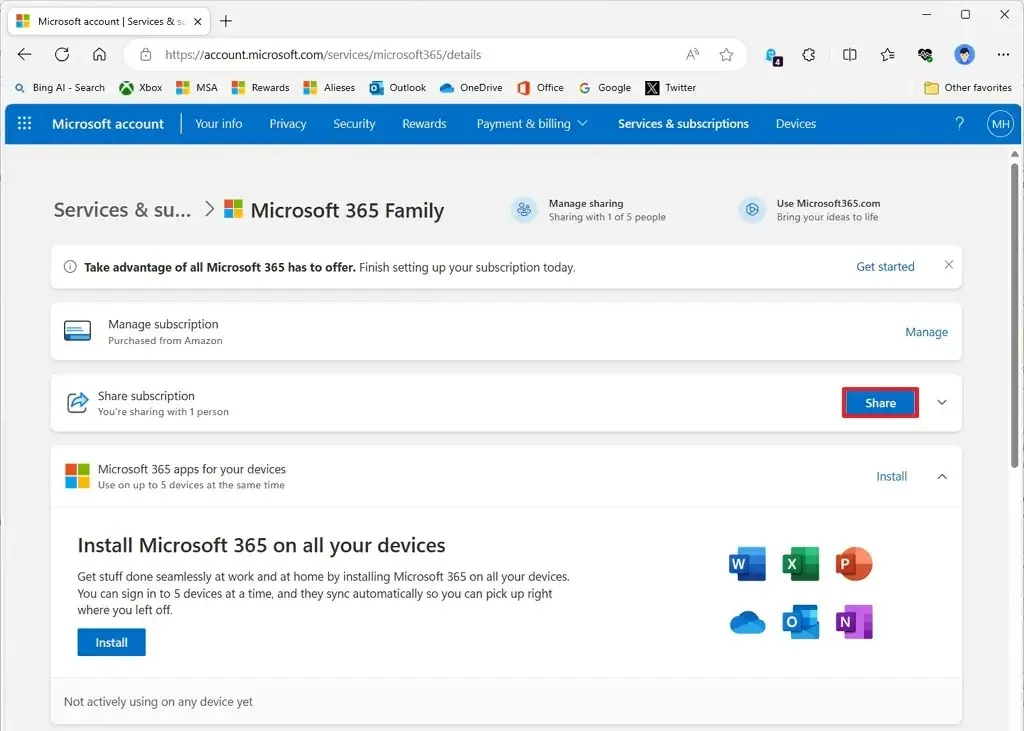
Press the Share button.
-
Select the Email invite option.
Quick Note: Alternatively, you can click on “Create link” to share a link that others can use to join. -
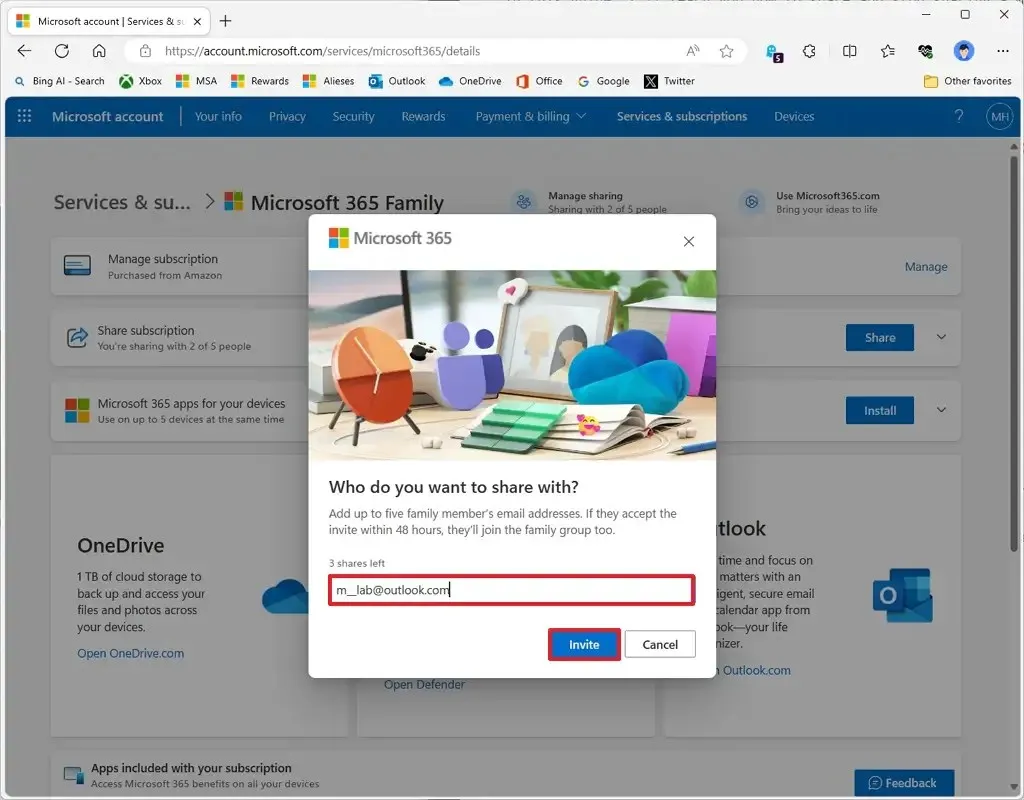
Enter the email address of the person you wish to invite to share your Microsoft 365 Family subscription.
-
Click the Invite button.
After completing these steps, the invited person will receive an email where they must click the “Join now” button to accept your invitation and gain access to the shared benefits, including 1TB of OneDrive storage, Office applications, and additional perks.
Within the Share subscription area, you can monitor how many people are utilizing the subscription and check on the remaining licenses available. To free up a license, you may need to remove existing members before adding new ones.
Stop Sharing Microsoft 365 Subscription Benefits
To discontinue sharing your Microsoft 365 account, adhere to these steps:
-
Enter your login details if prompted.
-
Click on the Services & subscriptions option.
-
Locate the “Share subscription” option.
-
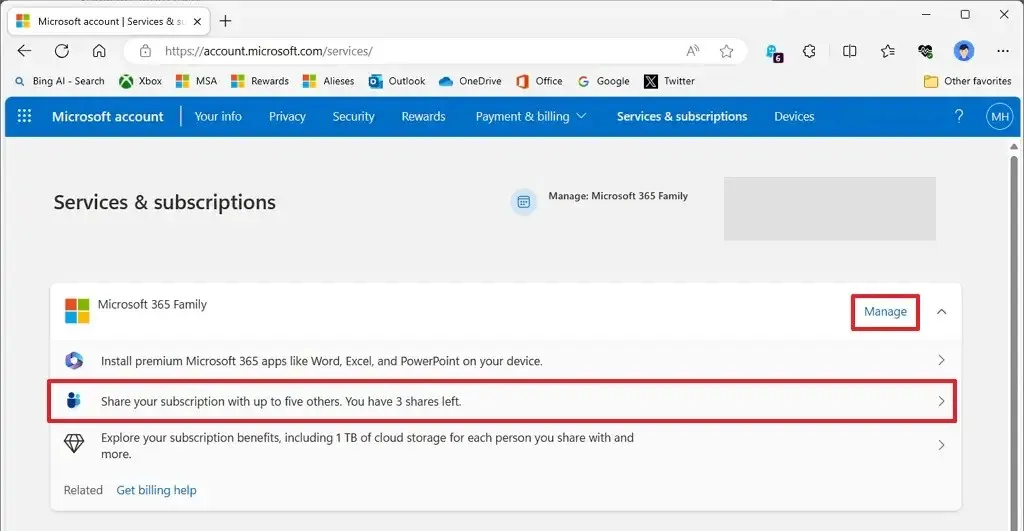
Click on the Manage option for your “Microsoft 365 Family” subscription.
-
Select “Share your subscription with up to five others”.
-
Click the Stop sharing button next to the name of the individual you wish to remove from your subscription.
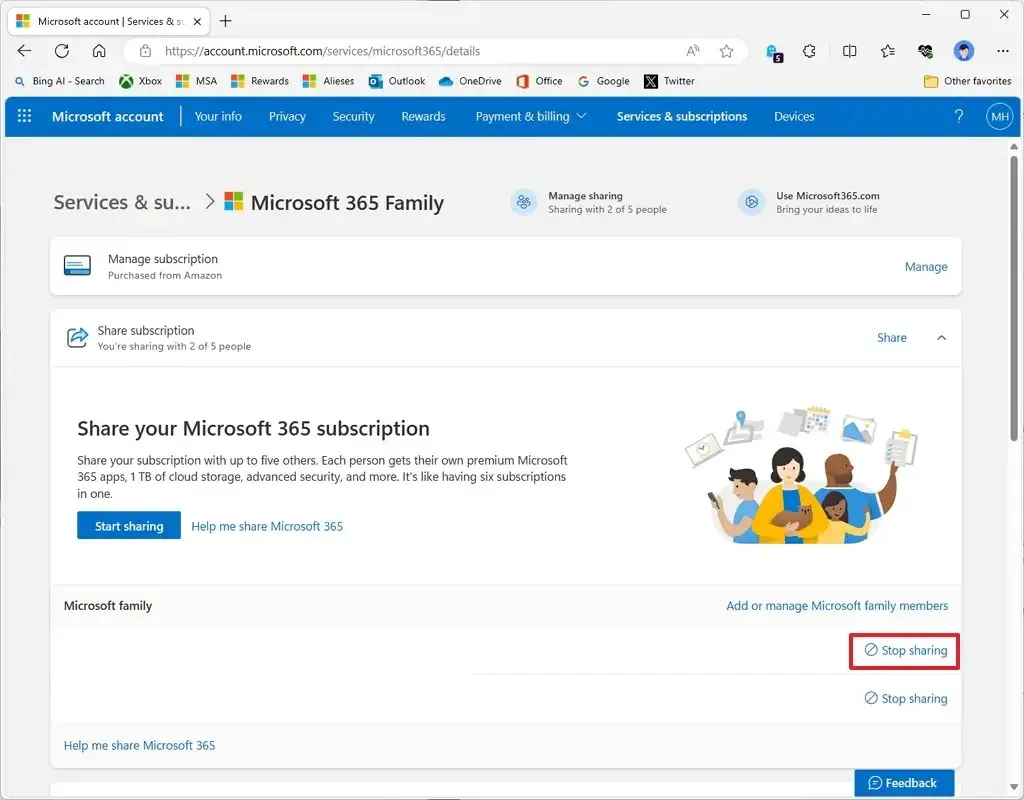
Upon completing these steps, the individual will instantly forfeit access to the shared benefits, including the additional 1TB of OneDrive storage, premium Outlook services, and Office applications. The OneDrive benefits will revert to the free tier status, but they will have a grace period to download any files stored there.
Additionally, while the suite of Office applications (such as Word, Excel, and PowerPoint) will become deactivated, they shall remain installed on the device. Should that person choose to uninstall the applications, they can refer back to the guidelines provided earlier in this document.
Additional Tips
- Double-check your invitation list to ensure that you only share with trusted users.
- Regularly review who has access to your subscription to manage licenses efficiently.
- Educate your family about the benefits available to them under the shared subscription.
Summary
This guide provided essential steps on how to effectively share and stop sharing your Microsoft 365 Family subscription, allowing multiple users to enjoy the diverse benefits of the service.
Conclusion
By sharing your Microsoft 365 Family subscription, you can significantly enhance collaborative efforts with family and friends while making full use of the subscription’s benefits. Just as importantly, the ability to manage and stop sharing provides valuable control over your account. Take action today to maximize your subscription’s potential!
FAQ (Frequently Asked Questions)
How many people can I share my Microsoft 365 Family subscription with?
You can share your Microsoft 365 Family subscription with up to five people.
What happens when I stop sharing my subscription?
When you stop sharing, the other person will lose access to the subscription benefits immediately.