Step-by-Step Guide to Leaving a Collaborative List on Google Maps

Key Notes
- Easily leave collaborative lists on Android and iOS devices.
- Follow short, GIF, or detailed step-by-step guides.
- The process is straightforward and user-friendly.
Mastering Google Maps: How to Exit Collaborative Lists with Ease
Collaborative lists on Google Maps enhance your ability to plan trips with friends and family by allowing shared contributions. However, sometimes these lists may become outdated or irrelevant for you, necessitating their exit. This guide will provide detailed instructions for both Android and iOS users on how to seamlessly leave collaborative lists, ensuring that your Google Maps experience remains tailored to your needs.
Leaving a Collaborative List on Google Maps for Android
If you’re on an Android device, here’s how to exit a collaborative list in Google Maps. Choose from the options below based on your preference.
Short Guide:
- Google Maps > Saved > Select collaborative list > Leave > Leave.
GIF Guide:
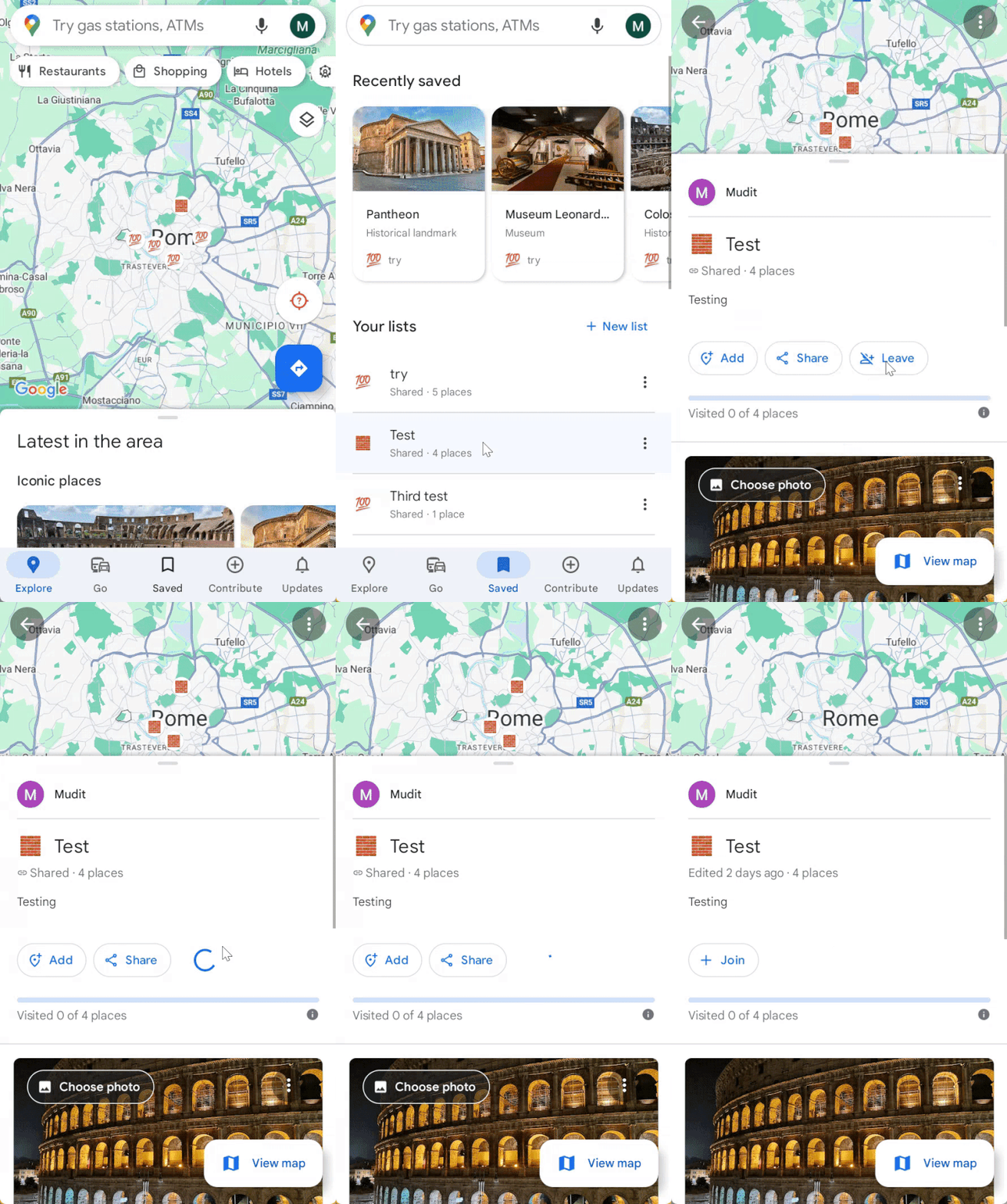
Step-by-Step Guide:
Follow these detailed steps to exit a collaborative list:
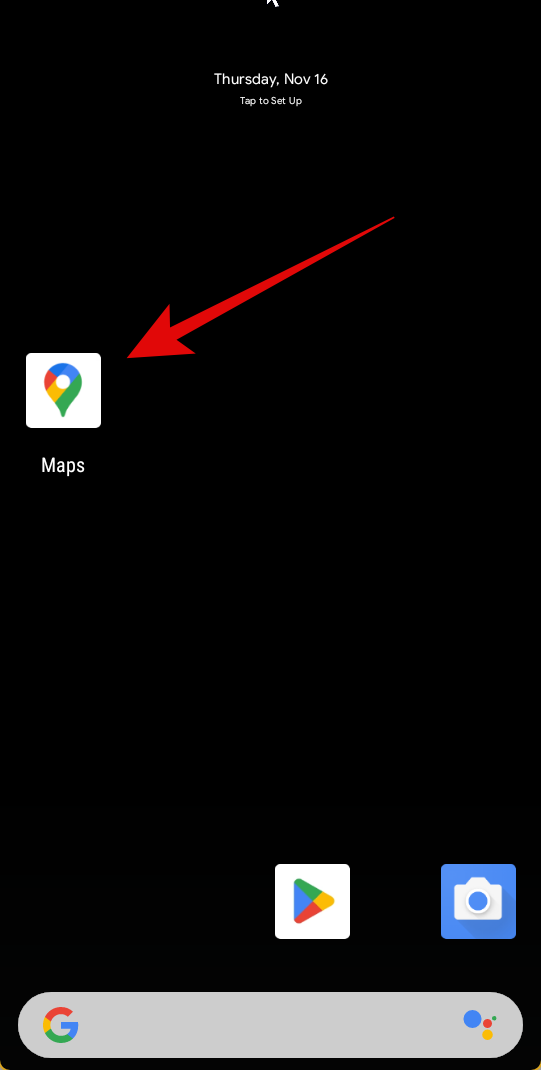
Step 1: Open Google Maps and Navigate to Saved
Launch Google Maps and tap on Saved located at the bottom of your screen.
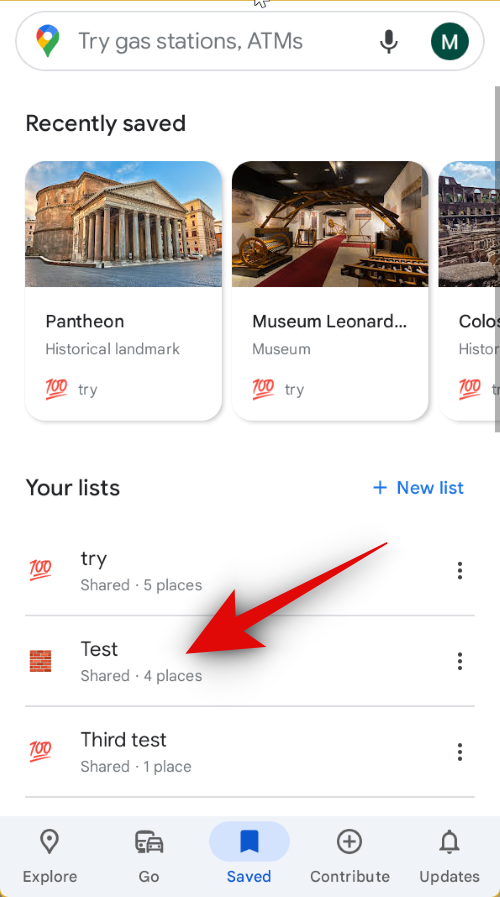
Step 2: Select Your Target Collaborative List
Find the collaborative list that you wish to exit from and tap on it to open the details.
Step 3: Confirm Your Decision to Leave
Once opened, tap on Leave at the top of the list and confirm your exit by tapping Leave once more.
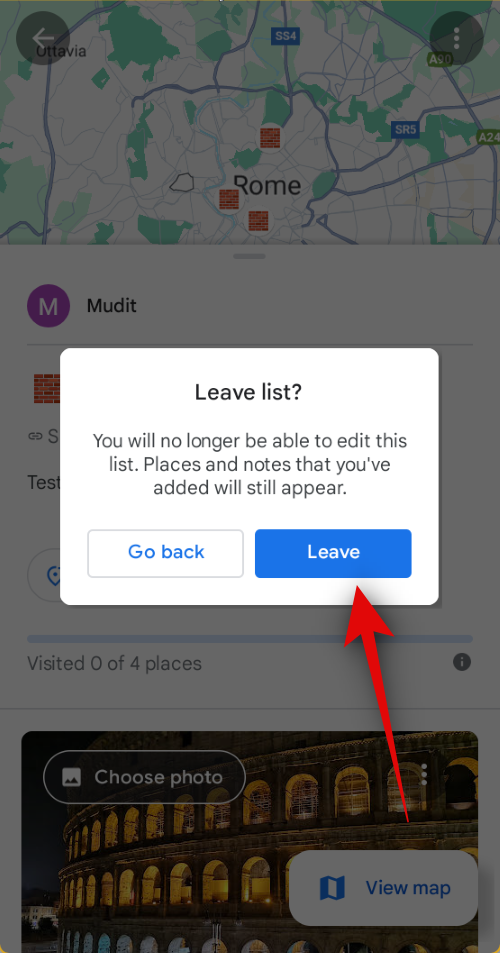
You have now successfully exited the selected collaborative list, and it will no longer appear in your Saved section on Google Maps.
Leaving a Collaborative List on Google Maps for iOS
If you’re an iPhone user, follow the steps outlined below to exit a collaborative list in Google Maps. Let’s dive in!
Short Guide:
- Google Maps > Saved > Select collaborative list > Leave > Leave.
GIF Guide:
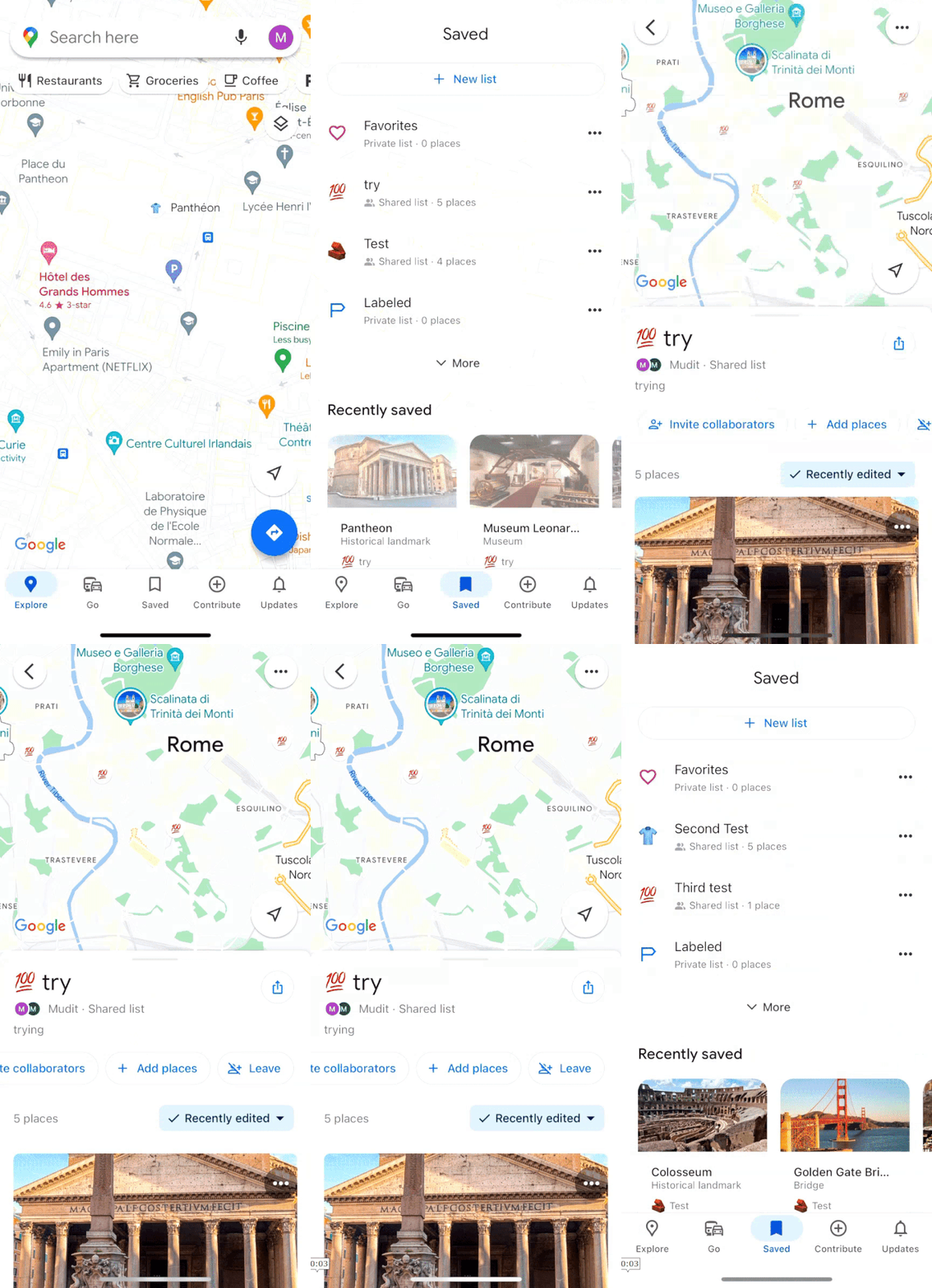
Step-by-Step Guide:
Follow these steps to successfully leave a collaborative list:
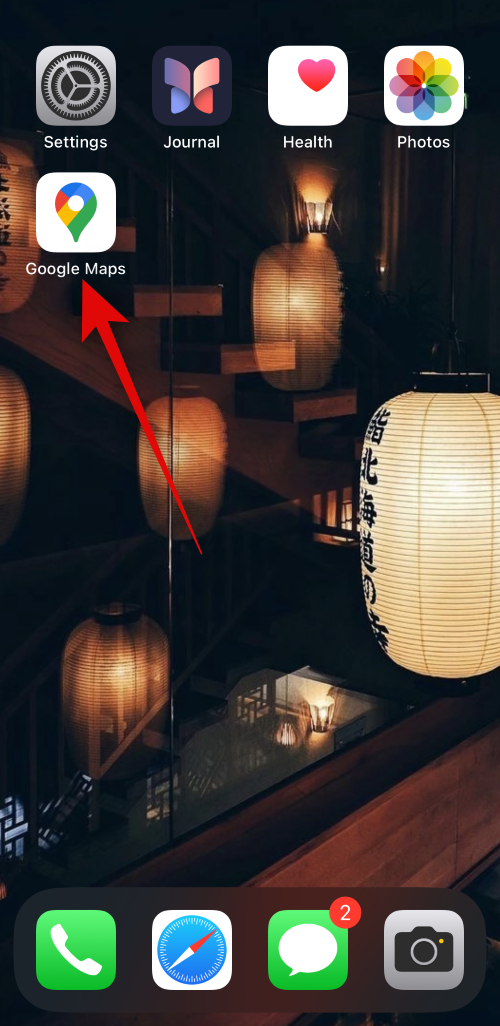
Step 1: Launch Google Maps on Your iPhone
Open Google Maps and tap on Saved at the bottom of your screen.
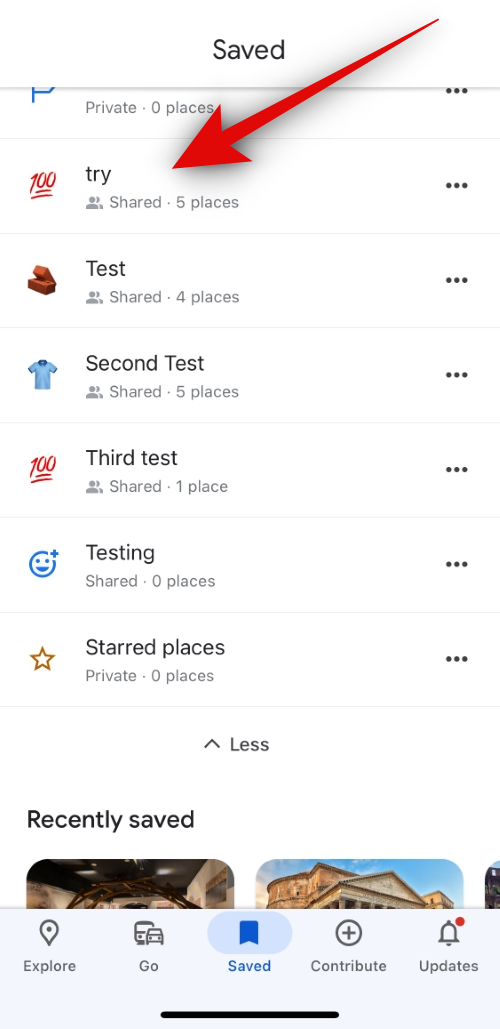
Step 2: Access the Collaborative List
Tap on the collaborative list that you want to leave; it will display on your screen.
Step 3: Confirm Leaving the List
Simply tap on Leave at the top of your screen and confirm your exit again by tapping Leave.
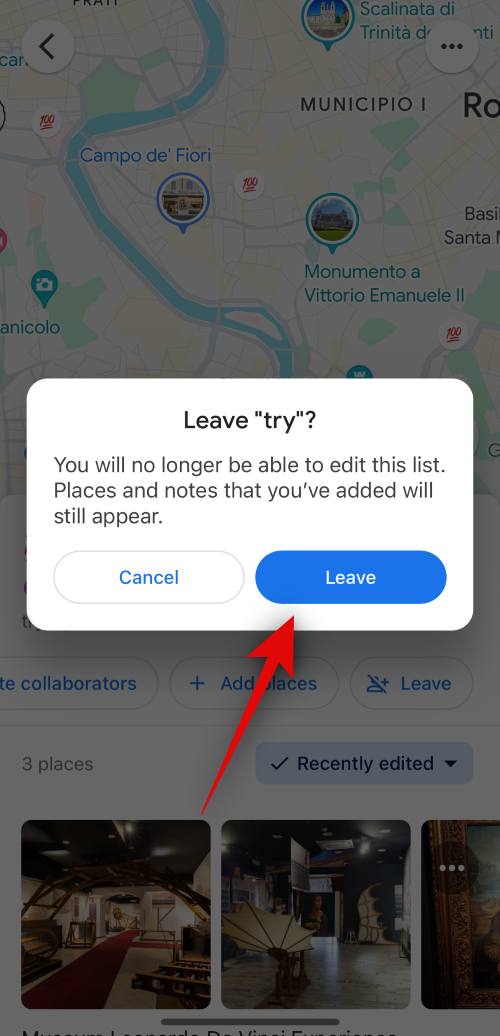
You will have now successfully exited the chosen collaborative list, and it will no longer be displayed in the Saved section on Google Maps.
Summary
This guide provided straightforward instructions for leaving collaborative lists in Google Maps on both Android and iOS devices. With short, GIF, and detailed step-by-step guides, you can easily manage your collaborative lists to ensure only relevant ones remain accessible. Remember, the process is simple and user-friendly.
Conclusion
Exiting a collaborative list in Google Maps is a swift process that ensures your saved lists are relevant to your needs. With the easy instructions outlined in this guide, you’re now equipped to manage your collaborative experiences effectively. Feel free to leave comments or questions below if you need further assistance!
FAQ (Frequently Asked Questions)
Can I rejoin a collaborative list after I leave it?
Yes, if the list owner allows it, you can rejoin the collaborative list at any time.
Will the list owner be notified if I leave?
No, Google Maps does not notify the list owner when someone leaves a collaborative list.