Step-by-Step Guide to Install ChatGPT as a Windows 11 and 10 App

Key Notes
- Install ChatGPT as a Progressive Web App (PWA) for easy access.
- Utilize Microsoft Edge or Google Chrome for installation.
- Uninstalling the app is straightforward from either browser.
Unlock the Potential: Install ChatGPT as a Progressive Web App on Windows 11 and 10
This guide explains how to install ChatGPT as a Progressive Web App (PWA) on Windows 11 or 10 using Microsoft Edge and Google Chrome, enhancing your user experience.
Installing ChatGPT as a PWA via Microsoft Edge
Follow these steps to install ChatGPT on Windows 11 or 10 using Microsoft Edge:
-
Launch Microsoft Edge.
-
Navigate to the ChatGPT website .
-
Select the Sign in button to access your account.
-
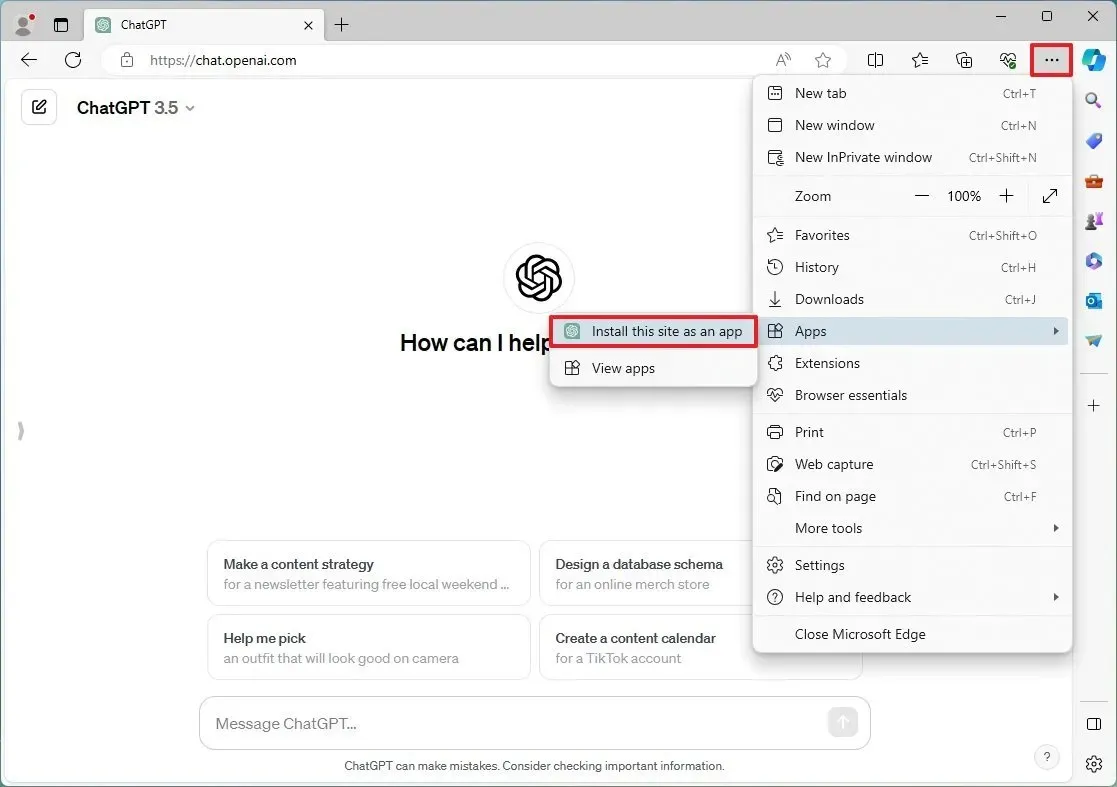
Click on the Settings and more (three-dotted icon) in the upper right corner.
-
From the dropdown, choose the Apps submenu.
-
Select the “Install this site as an app” option.
-
Finally, click the Install button to set up the app.
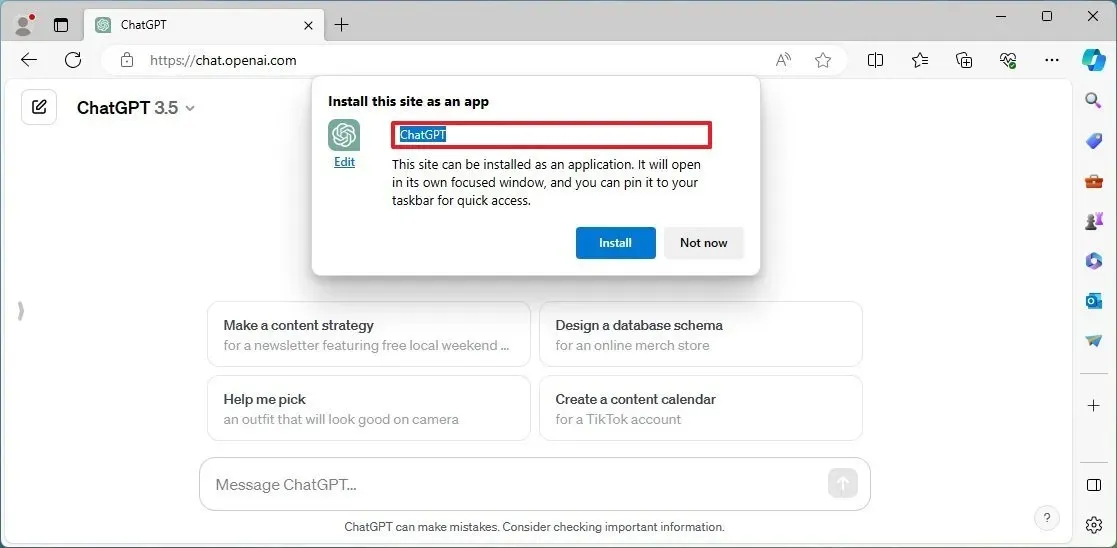
After completing the steps, ChatGPT will be available in your Start menu like any native application.
Step 1: Uninstalling ChatGPT from Microsoft Edge
To remove the ChatGPT app from your system, follow these steps:
-
Open Microsoft Edge.
-
Click on the Settings and more (three-dotted icon) in the top-right corner.
-
Select the Apps submenu.
-
Click the View apps option.
-
Access the More settings (three-dotted) button in the top-right corner and select “Manage apps”.
-
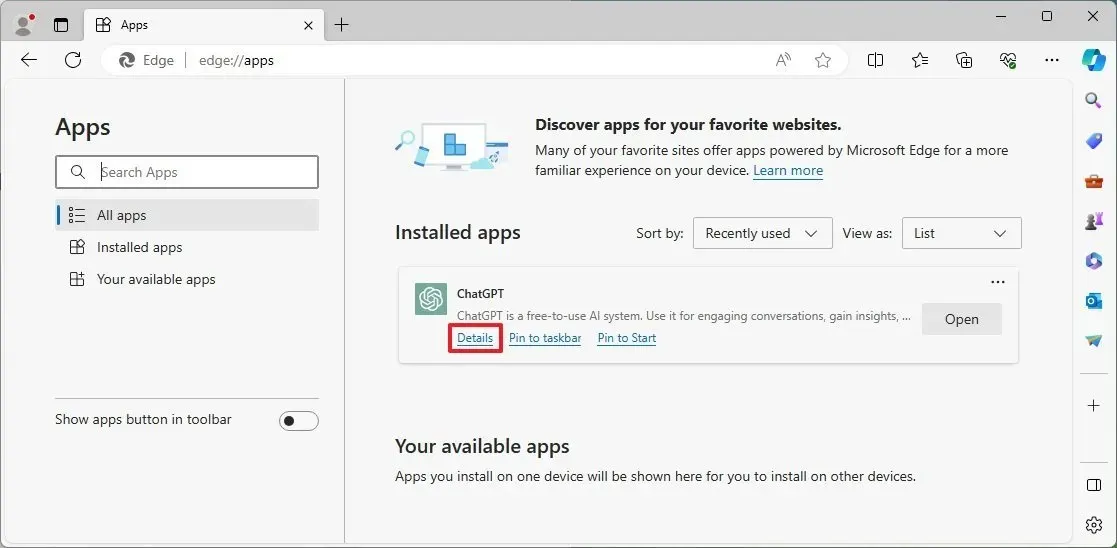
In the “Installed apps” section, select the Details button for the app.
-
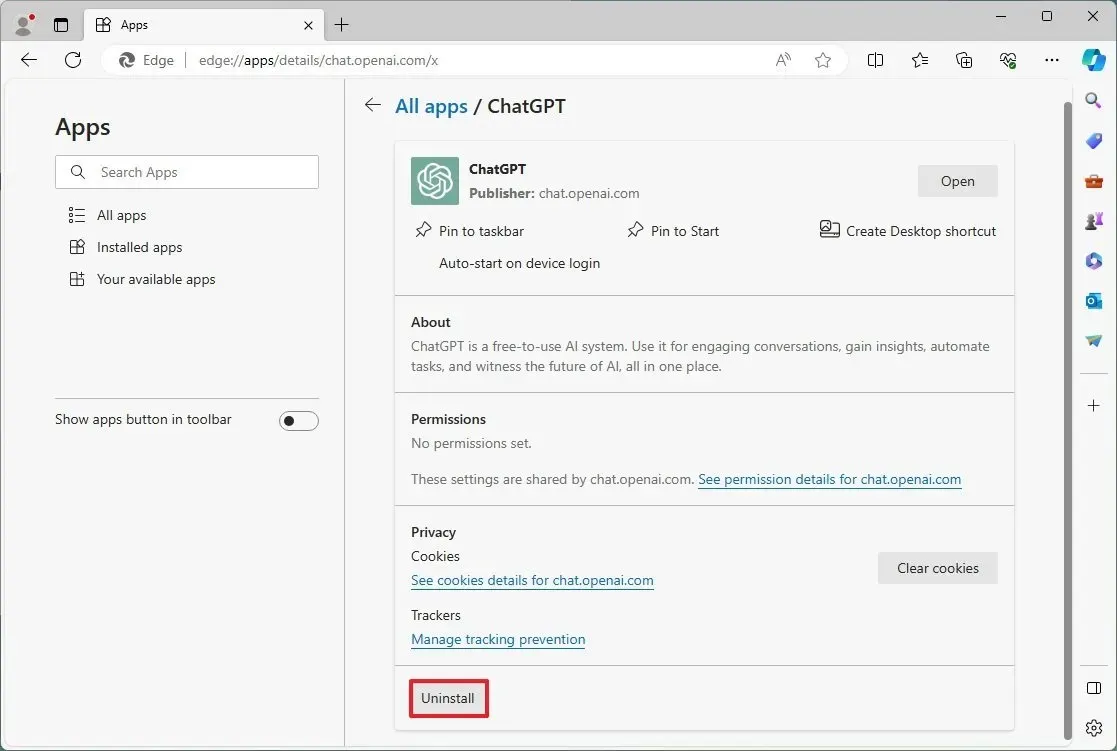
Click the Uninstall button.
-
(Optional) Select the “Also clear data from Microsoft Edge” option.
-
Finally, click the Remove button.
Alternatively, you can uninstall ChatGPT through Settings > Apps > Installed apps, by selecting the app and clicking the “Uninstall” button. Another option is to right-click the app from the Start menu and choose the “Uninstall” option.
Installing ChatGPT as a PWA via Google Chrome
To install ChatGPT using Google Chrome, follow these steps:
-
Open Google Chrome.
-
Visit the ChatGPT website .
-
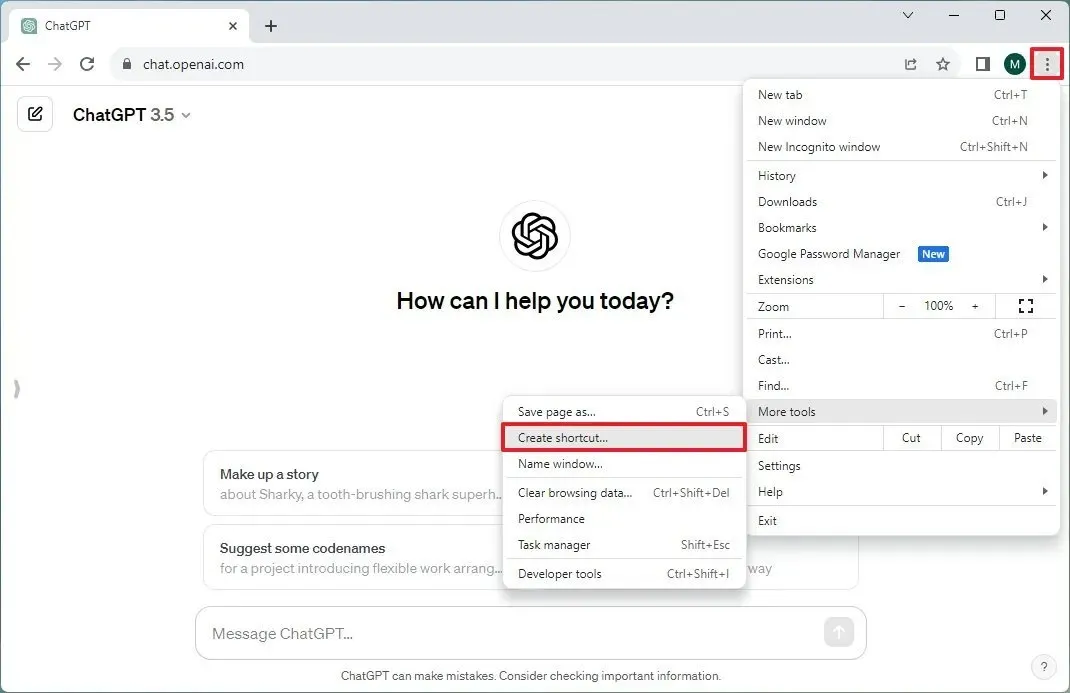
Click the Customize and Control (three-dotted icon) in the upper right corner.
-
Hover over More tools and choose the Create shortcut option.
-
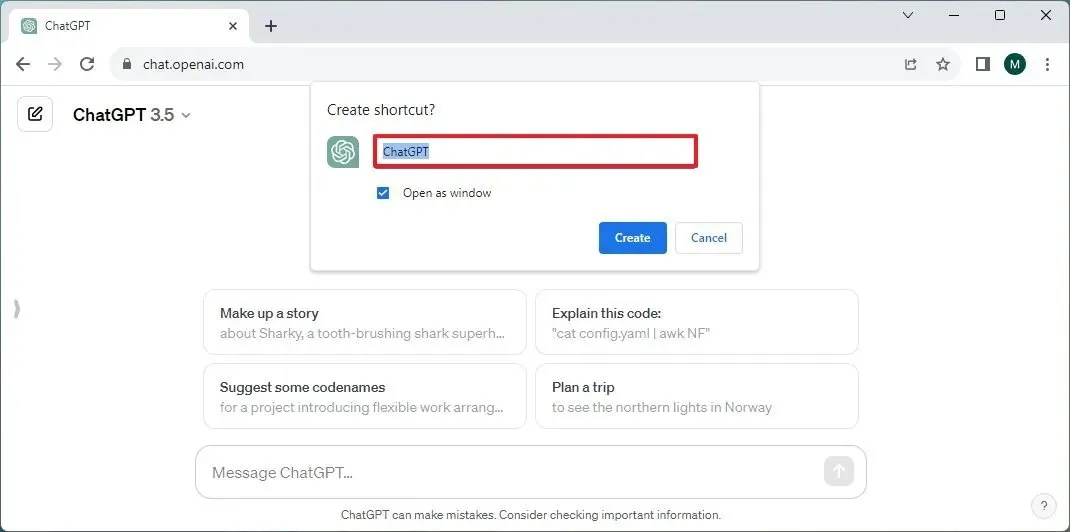
Certainly check the “Open as window” option.
-
Finally, click the Create button.
After completing these steps, ChatGPT will be installed as a web app on Windows using Google Chrome.
Step 1: Uninstalling ChatGPT from Google Chrome
To remove the ChatGPT app from Chrome, follow these steps:
-
Open Google Chrome.
-
Navigate to the following settings page:
chrome://apps -
Right-click on the ChatGPT app and select “Remove from Chrome”.
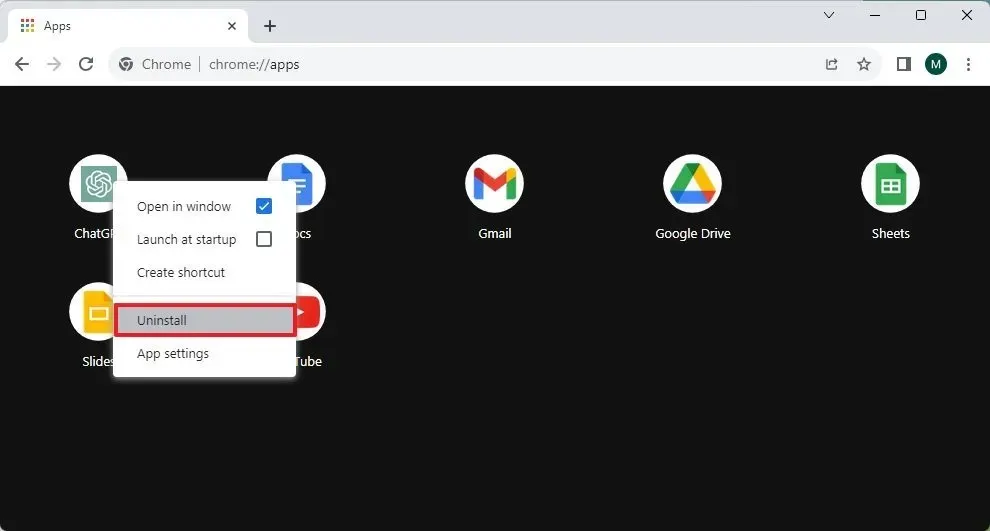
You can also uninstall the ChatGPT app via Settings > Apps > Apps & features, selecting the app, and clicking the “Uninstall” button. Alternatively, from the Start menu, you can right-click the app and select “Uninstall”.
Summary
By following the steps outlined in this guide, you can successfully install ChatGPT as a Progressive Web App on your Windows 11 or 10 system using either Microsoft Edge or Google Chrome. This will streamline your access to ChatGPT, providing a desktop-like experience.
Conclusion
Installing ChatGPT as a PWA enhances how you interact with the app, making it more accessible and user-friendly. Whether you prefer Microsoft Edge or Google Chrome, the process is straightforward and quick. Enjoy seamless access to advanced AI capabilities right from your desktop!
FAQ (Frequently Asked Questions)
What is a Progressive Web App (PWA)?
A Progressive Web App (PWA) combines the best of web and mobile apps, allowing users to install them on their devices while enjoying offline functionality and automatic updates.
Can I uninstall ChatGPT as a PWA?
Yes, you can easily uninstall ChatGPT from both Microsoft Edge and Google Chrome through the settings or app management sections.