A Complete Guide to Hosting Your Own Minecraft Server

Key Notes
- Take full control of your gaming environment by self-hosting.
- Follow detailed steps for both system service and Docker container methods.
- Customize server properties to enhance gameplay experience.
Unlock the Power of Minecraft: Host Your Own Server on Linux
Are you a dedicated Minecraft player looking to take full control of your gaming experience? Hosting your own Minecraft server can give you the freedom to customize the game environment, ensure privacy, and create your own community. This guide will show you everything you need to know about setting up a Minecraft server on a Linux machine.
Understanding the Benefits of Self-Hosting
Self-hosting your Minecraft server offers several advantages:
- Privacy and Control: Enjoy gameplay without the risk of global bans from third-party services like Minecraft Realms.
- Full Customization: Gain access to your world’s dimension files and perform server alterations easily.
- Flexible Modding Options: Implement mods and various mod packs that may not be supported by hosted services.
Preparing Your System for Hosting
For this guide, we’ll assume you are using an Ubuntu server with at least 4GB RAM. You should also have a domain name ready for DNS setup.
Begin by installing the necessary software packages using Ubuntu’s apt package manager:
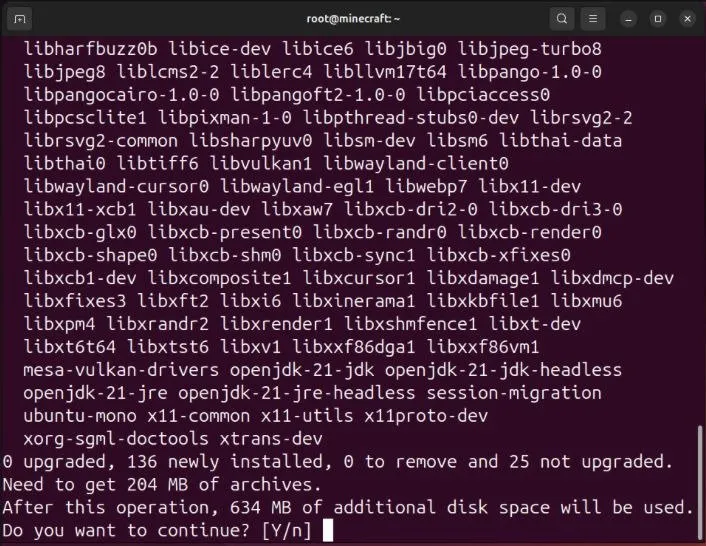
Next, you’ll need to create a DNS record for your domain. Add an “A” record that points your domain to the Minecraft server’s IPv4 address:
Steps to Install and Launch Your Server
Download the server’s.jar file directly from Minecraft’s official download page:
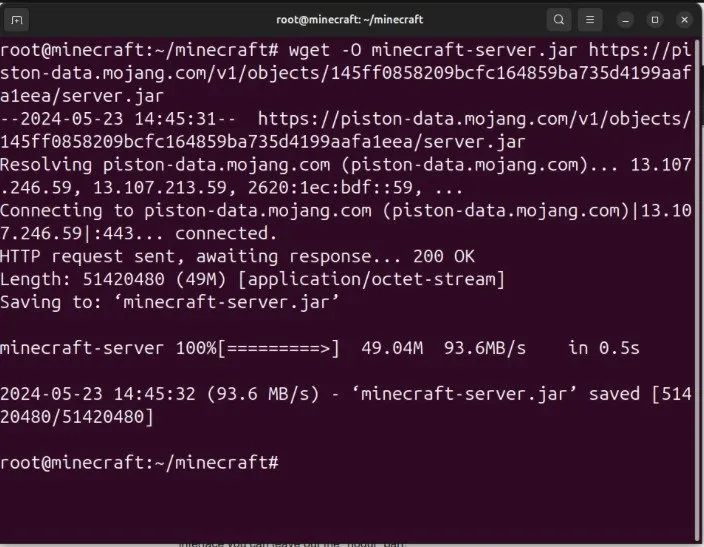
To comply with the Minecraft EULA, create a file named “eula.txt” in your server directory and accept the license:
Customizing Your Server Configuration
Modify your server’s behavior by editing the “server.properties” file. Ensure you’re backed up before making any changes:
Using your favorite text editor, open the file to adjust settings such as difficulty, player versus player (PvP), and other configurations.
Setting Up a Minecraft Server Using Docker
Your Minecraft server can also be hosted as a Docker container, providing flexibility to manage versions and configurations.
After installing Docker, create a docker-compose.yml file to define your server:
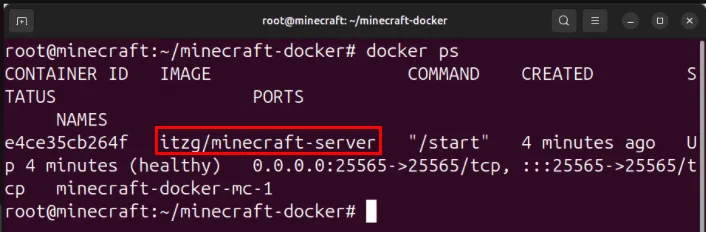
Rebuilding Your Minecraft Server Container
To adjust the core functionalities of your server, modify the docker-compose.yml file. Add a new type variable to change the server’s core:
Run sudo docker compose up -d to apply your changes.
Summary
Hosting your own Minecraft server can offer unparalleled levels of customization, privacy, and control over your gaming experience. Whether using a traditional Linux setup or a Docker container, the process is straightforward and rewarding for gamers eager to create their own Minecraft worlds.
Final Thoughts
By following this guide, you’ve taken the first steps toward mastering Minecraft server hosting. Explore the possibilities, invite your friends, and enjoy creating in a world of your own making!
FAQ (Frequently Asked Questions)
Do I need a powerful computer to host a Minecraft server?
While a powerful computer can enhance performance, you can host a server on machines with moderate specifications, like a basic Ubuntu server with 4GB of RAM.