Guide to Emulating PS2 Games on M1, M2, and M3 Macs Using PCSX2

Key Notes
- Ideal specifications for running PCSX2 on Apple Silicon Macs.
- Essential tools such as PS2 BIOS and ROMs.
- Considerations regarding the legality of game emulation.
Unlock Retro Gaming: A Guide to Emulating PS2 Games on Apple Silicon Macs Using PCSX2
Gone are the days of hunting for an affordable and functional PS2 console to relive or discover your favorite PS2 games. With the power of Apple Silicon Macs and the versatility of the PCSX2 emulator, PS2 emulation is now within reach. This guide will walk you through the setup process, system requirements, and legal considerations for an optimal gaming experience.
Why M1, M2, and M3 Macs Excel at Emulating Games
Apple’s M1, M2, and M3 processors offer unmatched performance, comparable to larger laptops, yet deliver more GPU power than a PlayStation 4. Their architecture makes them exceptional for emulating older consoles, providing smooth gaming experiences on even the most compact Macs, like the 13-inch and 15-inch MacBook Air.
While robust hardware is essential, the capability of running PS2 games also hinges upon using a reliable emulator. Fortunately, PCSX2 stands out as a leading PS2 emulator, easily accessible for Mac users.
Requirements for PCSX2 Emulator
Before diving into the emulation, ensure your Mac meets the necessary requirements: macOS 11.0 (Big Sur) or later is essential. Ideally, the system should possess at least 16 GB of RAM for optimal performance, although 8 GB is the minimum requirement that any Apple Silicon Mac meets.
While you can navigate the emulator using a keyboard, using a gamepad improves your gaming experience significantly. Both PS4 and Xbox controllers work seamlessly with PCSX2, whether connected via Bluetooth or USB.
Step-by-Step Guide to Installing PCSX2
To effectively set up PCSX2 on your Mac, you will need a legitimate PS2 BIOS file and a game ROM. We recommend dumping your own PS2 BIOS using tools like biosdrain. While downloading BIOS files or ROMs may seem easier, it can be illegal depending on your location.
For game ROMs, you can refer to the Emulation General Wiki for comprehensive guides, and ensure that you only use ROMs for games you own.
Once you have these, download the latest PCSX2 nightly release for macOS from the official website.
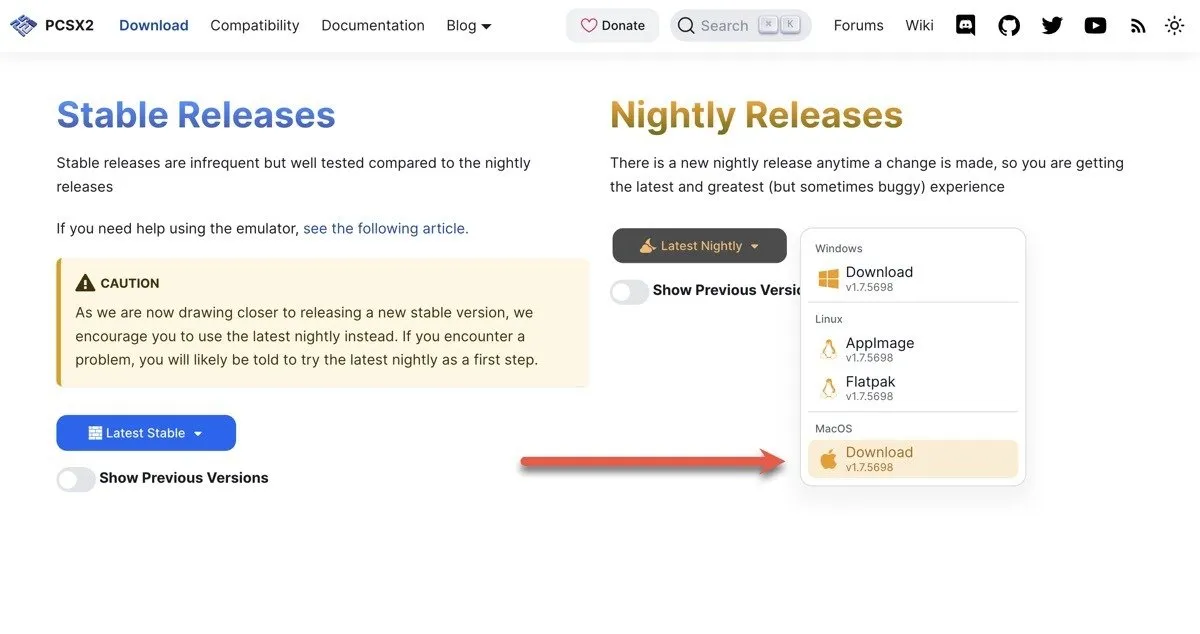
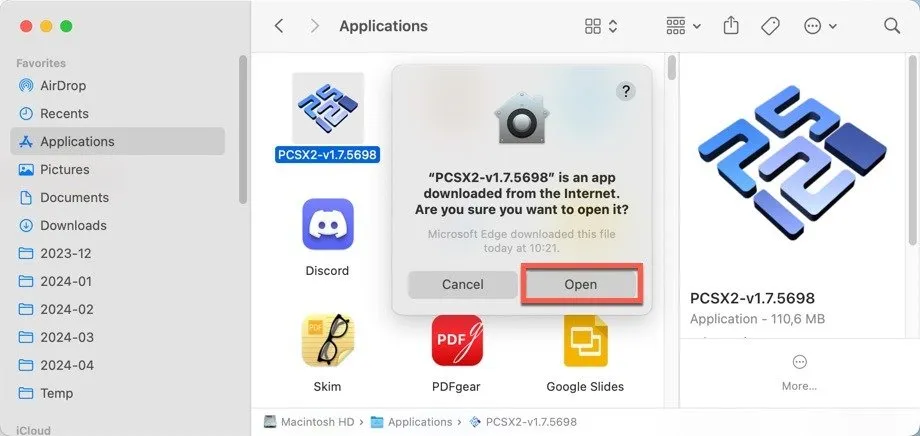
After downloading, extract the archive and move the PCSX2 application to your Applications folder. Launch it directly or through Spotlight, and choose Open when prompted.
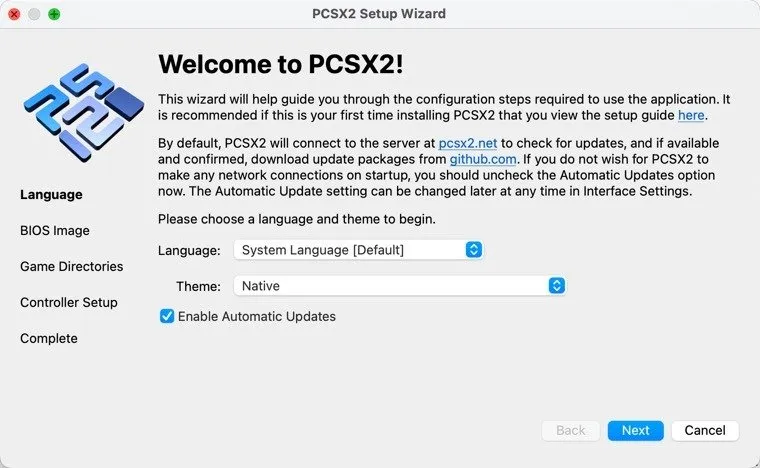
A setup wizard will guide you through the initial steps, including selecting a language, choosing your BIOS, setting game directories, and choosing your controller configuration. Click Finish to wrap up.
Select a game in the main window to start playing.
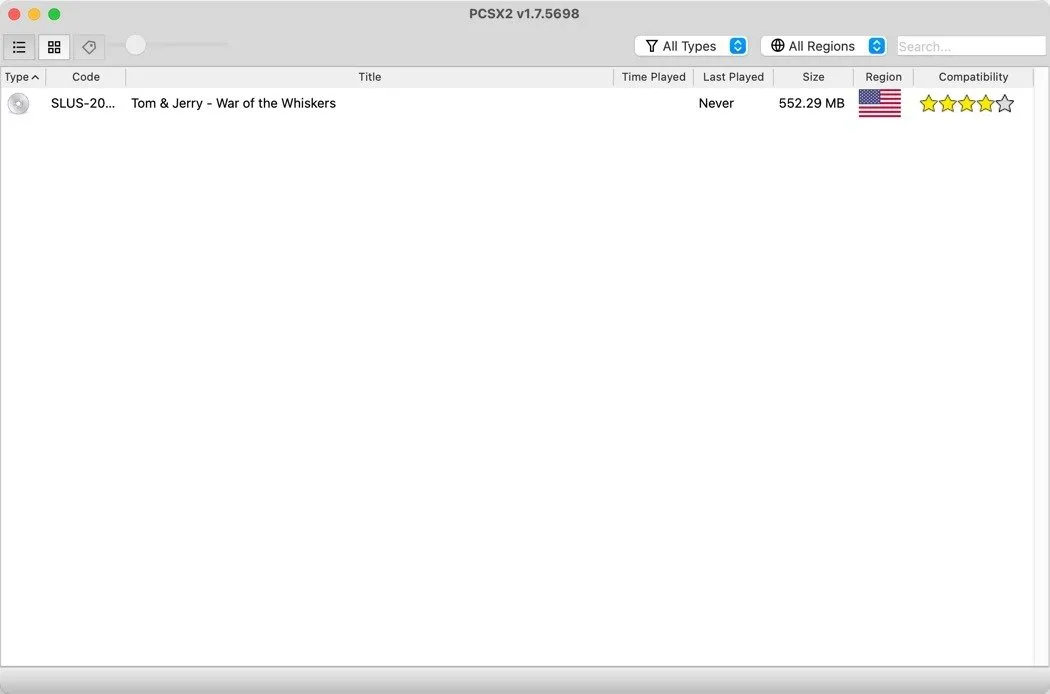
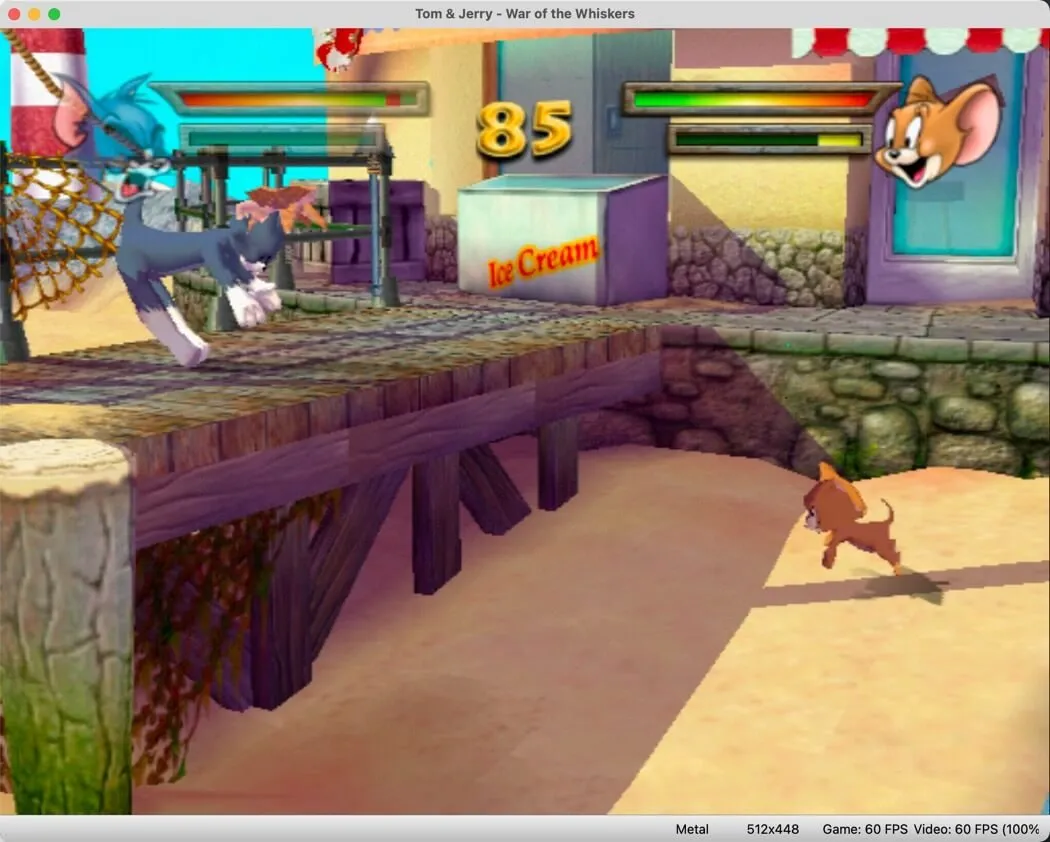
For example, I launched “Tom and Jerry in War of the Whiskers.” It ran smoothly on my MacBook Air at a consistent 60 frames per second.
Fine-tuning PCSX2 Settings for Optimal Experience
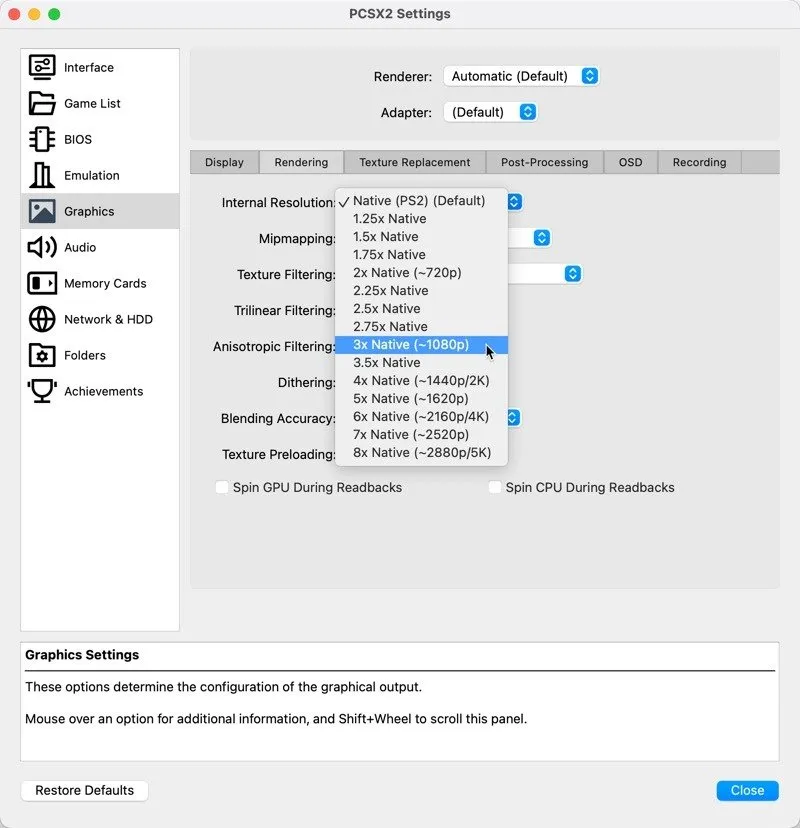
Once your game is running, explore the settings menu to optimize performance. For instance, consider increasing the game’s rendering resolution to 1080p or 1440p under Settings > Graphics, which significantly enhances visual clarity. Be cautious, though, as this may affect performance based on the game.
Additionally, you can adjust the aspect ratio in the Display tab. Many PS2 games support the modern 16:9 ratio natively, and for those that don’t, widescreen patches can be utilized.
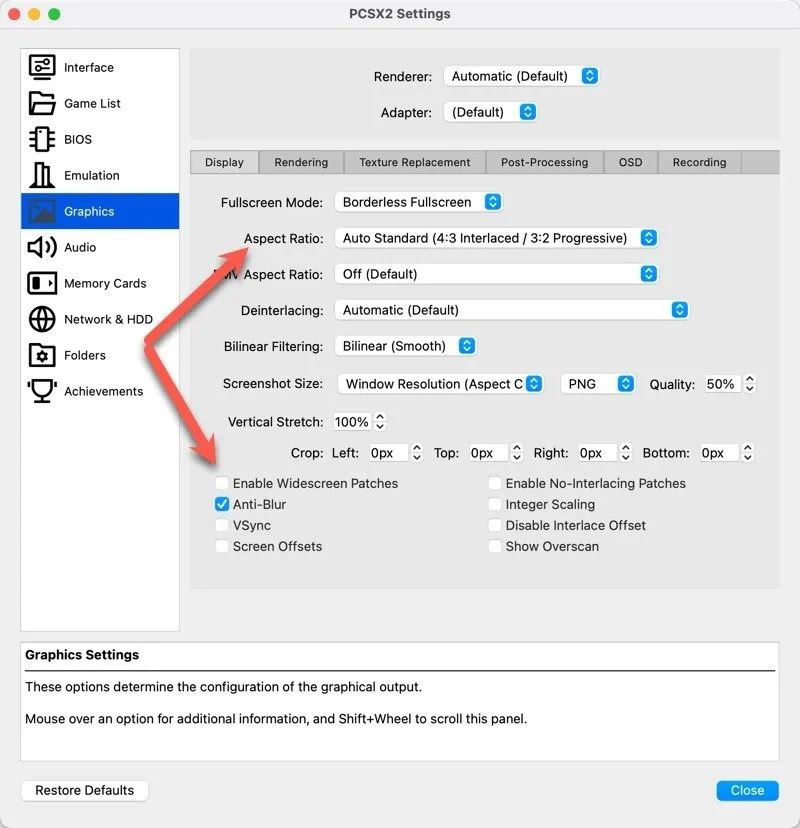
Note that individual games might necessitate specific tweaks to run optimally.
Understanding Legal Aspects of Emulation
Legality surrounding PS2 emulation varies by region. Typically, it’s permissible to back up games you’ve purchased and use them with an emulator, but downloading games remains illegal in most areas. Stay informed and ethical regarding your gaming practices.
With the powerful PCSX2 emulator, you can easily access and enjoy your favorite PS2 games on M1, M2, and M3 Macs, paving the way for nostalgia and new gaming adventures.
Image credit: DALL-E. Screenshots by David Morelo
Summary
This guide provides an accessible overview of how to set up the PCSX2 emulator on M1, M2, or M3 Mac devices, including essential system requirements, installation steps, configuration tips, and legal considerations for enjoying PS2 games without hassle.
Conclusion
Emulating PS2 games on modern Apple Silicon Macs is a simple yet rewarding experience. Follow the steps outlined in this guide to relive your gaming memories or discover timeless classics. Always prioritize ethical practices when it comes to game ownership and emulation.
FAQ (Frequently Asked Questions)
Is PCSX2 free to use?
Yes, PCSX2 is a free and open-source emulator available for download from its official website.
Do I need a physical PS2 console to use PCSX2?
No, you do not need a physical console. However, you do need the PS2 BIOS file, which should be extracted from a real PS2 system you own.
Can PCSX2 run all PS2 games?
PCSX2 supports a large library of PS2 games, but compatibility can vary. Check online databases for compatibility reports on specific games.