Guide to Bypassing Windows Password Without Setting One

Key Notes
- You can often bypass the login requirement by simply hitting Enter if there’s no password set.
- If other admin accounts exist, use them to modify user password settings.
- Accessing Command Prompt from Windows Recovery can help bypass passwords more effectively.
Mastering the Art of Bypassing Windows Password Prompts for Unset Passwords
Encountering a Windows password prompt when no password was ever set can be perplexing. This guide offers practical solutions to bypass these prompts, ensuring you regain access to your Windows system hassle-free.
Utilize a Blank Password
Step 1: Attempt a Blank Input
Often, Windows prompts for a password using an empty password field. To conquer this, simply press Enter without typing anything in the password prompt. Windows should grant you access.
Leverage Another Account to Remove Password Requirement
Step 2: Access with an Alternate Administrator Account
If an additional administrator account exists, log into it to eliminate the password for the locked user account.
Press Windows + R, enter lusrmgr.msc in the Run dialog, and open the Local Users and Groups Management tool. Navigate to Users, right-click the user account in question, and select Set Password.
Pro Tip: After clicking Proceed, leave the password fields blank and click OK to bypass the password entirely.
Bypass Password Using Command Prompt
Step 3: Utilize Command Prompt for Bypassing
If the other methods do not apply, you can leverage the Command Prompt. This is especially useful for Windows Home users lacking access to Local Users and Groups Management.
To start, access the Windows Recovery Environment (WinRE) by repeatedly pressing a designated key at startup (e.g., F2, F8, F10, F11, F12, or Del ), navigate to Troubleshoot -> Advanced options -> Command Prompt.
Input the command:
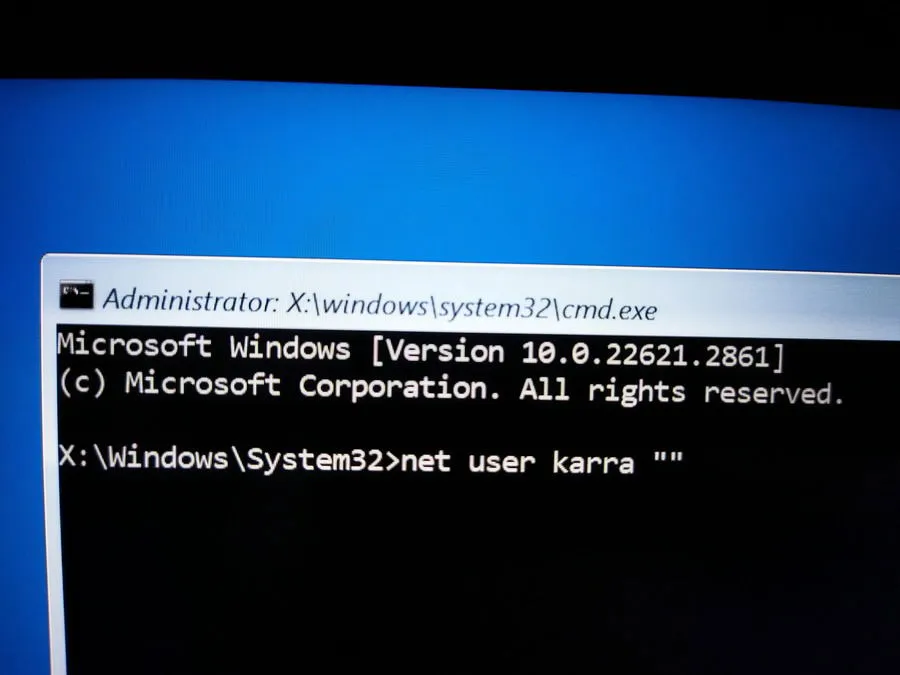
Make sure to substitute username with the relevant target account’s name. You can also include a new password for the account within the quotes if desired.
Boot into Safe Mode
Step 4: Initiate Safe Mode
To address potential corruption causing the password prompt, booting your system in Safe Mode is advisable, as it typically does not require you to enter a password.
Enter WinRE as previously outlined, select Troubleshoot -> Advanced options -> Startup Settings, and reboot the system. Choose Enable Safe Mode with Command Prompt.
Pro Tip: Access the user account in Safe Mode to then repeat the Command Prompt steps to remove the password requirement.
Restore Your System to a Previous Date
Step 5: Perform System Restore
If the login issue surfaced recently, the System Restore feature can revert your computer to a point when the password prompt was not an issue.
While in WinRE, navigate to Troubleshoot -> Advanced options, and run System Restore. Choose a restore point from before the problem began, and follow the on-screen instructions.
Activate the Hidden Administrator Account
Step 6: Enable the Super Administrator Account
The hidden Administrator account in Windows can be enabled for troubleshooting purposes if you lack alternate accounts or if other methods fail.
From Command Prompt in WinRE, run the command:
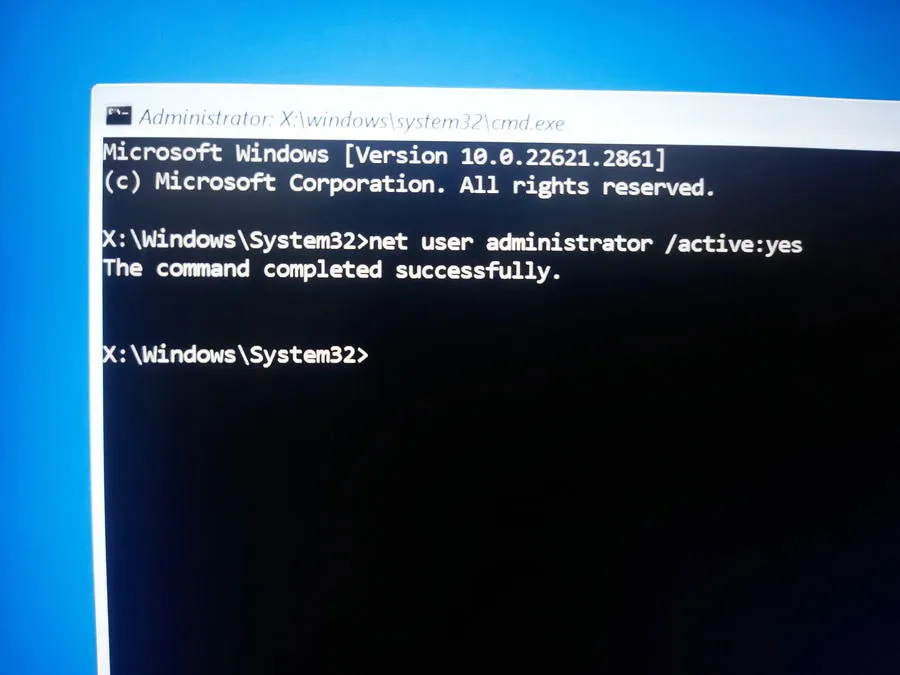
Restart the PC to access the new account labeled Administrator, which grants full access to your computer, allowing you to reset passwords, restore the system, or transfer files.
Pro Tip: Remember to disable the Administrator account once the problem has been resolved. Use Command Prompt and execute the relevant command.
Additional Tips
- Always ensure your files are backed up before making system changes.
- When using Safe Mode, be mindful of settings that can affect user accounts.
- Keep a recovery drive handy for emergencies—it can be invaluable when troubleshooting.
Summary
By leveraging various strategies such as password bypass, alternative accounts, Command Prompt, Safe Mode, and System Restore, users can effectively navigate around unexpected Windows password prompts. Mastery of these techniques will ensure smoother access to your Windows environment without unnecessary account complications.
Conclusion
Whether it’s a blank password acceptance, using alternate accounts, or accessing recovery tools, these methods empower users facing unexplained password prompts. Don’t hesitate to utilize these robust approaches for swift recovery of your login woes.
FAQ (Frequently Asked Questions)
What should I do if I can’t access Windows Recovery Environment?
If WinRE are inaccessible, consider creating a Windows recovery drive from another computer and use it to access troubleshooting options.
Can I recover my data if I cannot log in?
Yes, using the hidden Administrator account or Safe Mode allows you to access your files and transfer them to another account.