How to Fix Google Play Error Code 492: Complete Solutions

Key Notes
- Error Code 492 indicates a problem with app downloads or updates.
- Corrupted cache and misconfigured settings are common causes.
- Multiple solutions ranging from simple to complex are available.
Resolving Google Play Error Code 492: A Comprehensive Guide
Encountering error code 492 while trying to download or update apps on your Android device can be frustrating. This error arises primarily due to issues with the Google Play Store itself, corrupted app files, or problematic cache settings.
Effective Solutions to Fix Error Code 492
Before diving into complex solutions, try these quick fixes:
- Restart your device and ensure ample storage is available.
- Log out of the Google Play Store and back in again.
- Check the Google Play services status on the official status page or use Downdetector.
Step 1: Clear the Play Store Cache
To clear the cache, follow these steps:
- Go to Settings > Apps.
- Find and select Google Play Store.
- Tap on Storage.
- Clear both Clear data and Clear cache to remove temporary files.
- Confirm any prompts that appear.
- Don’t forget to clear the cache for Google Play Services too.
Pro Tip: Clearing the cache can resolve many temporary glitches in apps.
Step 2: Update Your Android Version
Check for Android updates to ensure smooth app performance:
- Navigate to Settings, and choose Software update.
- If an update is available, click on Download and install.
- Follow the prompts to complete the update process.
Pro Tip: Keeping your Android device updated is crucial for optimal performance.
Step 3: Uninstall Google Play Store Updates
You can revert to an earlier version of the Play Store:
- In the Settings, go to Apps and select Google Play Store.
- Tap the ellipsis icon (three dots) and choose Uninstall updates.
- Confirm when prompted and check if the issue appears resolved.
Pro Tip: Reverting updates can often solve compatibility issues.
Step 4: Reinstall the Affected App
To tackle issues with specific apps:
- Navigate to Settings > Apps and select the problematic app.
- Hit Uninstall.
- Open the Google Play Store and reinstall the app.
Pro Tip: This ensures you have the latest version of the app installed.
Step 5: Verify App Files in the OBB Folder
Check for issues within the OBB folder that may cause corruption:
Navigate to Android/obb and see if any app folder is marked with a question mark ( ? ).If it is, delete those files to allow redownloads during the next launch.
Pro Tip: Use a reliable file manager for easy access and file management.
Step 6: Download the APK from the Official Website
As an alternative, you can download the app’s APK directly:
Ensure you download only from reputable sources, and adjust your install settings in Settings > Apps > Special access > Install unknown apps.
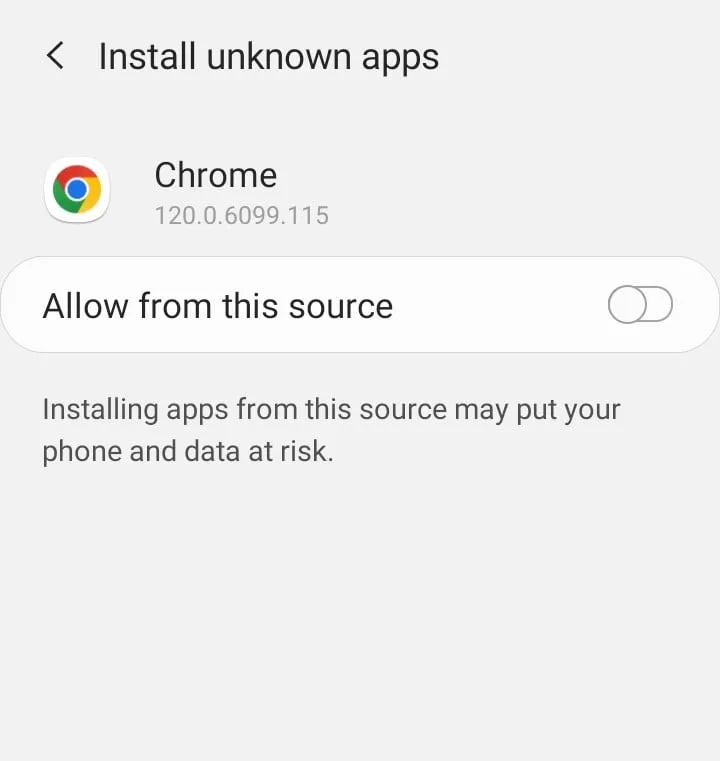
Pro Tip: After installing an APK, remember to revert the installation settings for security.
Step 7: Factory Reset Your Device
If all else fails, a factory reset may be necessary:
- Go to Settings > General management.
- Tap on Reset, then select Factory data reset.
- Confirm and wait for the process to complete.
Pro Tip: Always back up important data before performing a factory reset.
Additional Tips
- Ensure your device storage has sufficient space.
- Double-check your internet connection for stability.
- Disable any VPNs that might interfere with downloads.
Summary
Fixing Google Play error code 492 involves simple steps such as clearing cache and updating your device, along with more complex solutions like reinstalling problematic apps or performing a factory reset. Implement these methods gradually to restore your app functionality.
Conclusion
The Google Play error code 492 can be resolved by following the solutions outlined in this guide. From quick remedies to more involved troubleshooting, each step can help restore normal functionality. If you have further queries, feel free to reach out in the comments!
FAQ (Frequently Asked Questions)
What causes Google Play error code 492?
This error typically arises from corrupt app data, cache issues, or outdated Google Play services.
Can I fix error code 492 without factory resetting my device?
Yes, most issues can be resolved with simple steps such as clearing cache or reinstalling apps without needing a factory reset.